Firstly, you need to install Elementor to use it and this can be done by navigating to plugins section in WordPress and clicking on add new. Then this will open a new window with many plugins in it to pick from and to get the Elementor plugin you can search for it and the icon for it should look like the one at the top left.
How To Access Site Settings
When making a site in Elementor you might want to be able to change the settings for your site as changes made here will affect any pages you have created in Elementor, and this will make your site consistent.
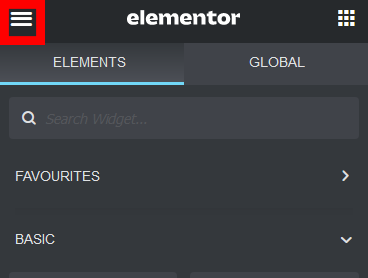
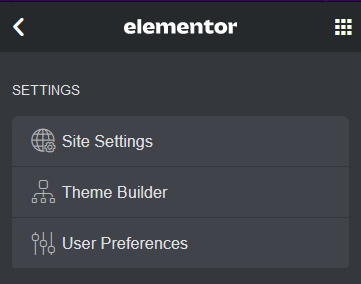
To access the site settings you need to click on the hamburger menu in the top left of your screen and the hamburger menu is the thing I have highlighted in red. Then a new menu will appear with a button for site settings and just click on the button to access all of the settings for your site.
Making Your Page A Blank Canvas
The first setting
I recommend changing is making your page a blank canvas and the reason for this
is by default your page will use the theme you are currently using on WordPress
and by making it a blank canvas your page will be blank so you can customise it
more to your liking instead of using a pre made theme.
To make your page
use a blank canvas go to site settings then click on the layout button this
will open a new window on the left side of the screen and the option we are interested
in is the default page layout by clicking on the box next to the text a drop
down menu will appear and from there select Elementor canvas this will make
your page a blank canvas.
Adding Text
One of the things you will want to add to your page is text to your page click or search for the text editor and drag the widget onto your page then this will open a new window on the left of your screen which various options relating to text such as the size colour etc this will be under the style menu as by default it will show the context menu which just shows the text you have written.
Adding Images
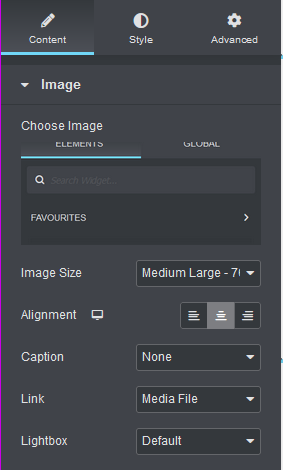
To add images it’s similar to how you add text you just drag the image widget onto your page and a new window will open on the left your screen allowing you to select the image you want to use and adjust some settings such as the alignment of your image and if you want your image to be able to link to a media file this means when a user clicks on a image it will open the full image.
Using a Spacer
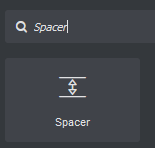
When designing your page you might want to use a spacer as this allows you add spaces between different elements on your page such as if you think some text on your page is too close together.
To add a spacer to your page you can simply scroll down until you find the spacer icon or just search for it then just drag the spacer widget onto your page then a new window will appear on the left side of screen allowing you to adjust the size of the spacer and this will determine how big the gap between content on your page will be.
Changing Global Fonts & Colours
Another thing you can change in site settings are the colours used on your website and the font that will be used by your pages and by changing them here it will affect any other page you make in Elementor so everything will have a consistent look to it.
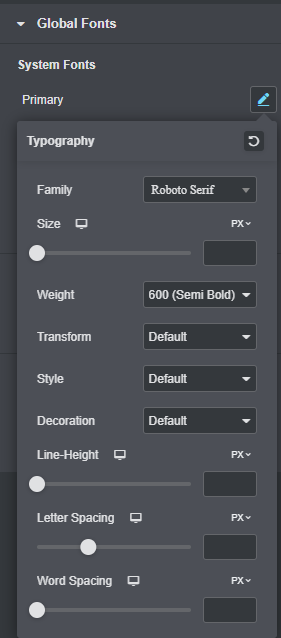
Firstly, to change the font you need to go to site settings then click on the global fonts button from there this will open a new window on the left of the screen, and this will allow you to change various settings relating to your font such as the type of font being used, if it’s bold or not etc. And it’s the same process for changing the colours used but just has settings relating to the colour used and when you click on a colour you
Adding Videos
You might want to add videos to your page, and this can be done by dragging the video widget onto your page and when you add the widget to your page it will give you some options such as where you want the video source to come from like if you want it to come from YouTube or any other platforms that host videos. Also, you can host the video yourself if you desire to and has general playback options if you want the video to Autoplay, loop etc.
Using A Divider
A divider allows you to divide the content on your page more easily by adding a line that separates your content from each other you might want to use this because it allows the user to see where that part of the page ends and a new one begins. To add it just drag the divider widget on where you want it to be placed and from there you will be able to decide how big you want the line to be, the style of it etc.
Changing the Background For your Page
You might want to change the background that is on your website to make it fit more with a colour scheme that you have chosen or you might want to include a image for the background instead and this can be done by going to site settings and selecting the background button and this will open a new menu allowing you to select options such as if you want to use a colour for your background or a image.