Creating Pixelation VFX
Creating Pixelation VFX


For this piece, I will need to create a pixelation effect. I need to do this because, as mentioned earlier, I want my piece to have an early 3D look to it, as they have a bit of a pixelated look to them. Since this will be used in a commercial for the PS1, adding this effect to my piece will help me get the look I am going for.
To set up this effect, I have followed a tutorial on YouTube to help get the look that I wanted to have, and below is the tutorial that I used to set this up.
Firstly, I needed to create a material that I could apply to a post-process volume in my scene, and by applying a material to it with the effect that I want, it will affect anything in the area that the post-process volume is in and by default, it will affect anything in that scene, and that’s what I want.
Material Editor
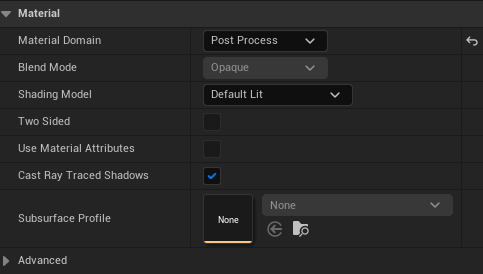
To apply a material to the post-process volume, you must set the material domain to the post-process option. This can be done by going to the left side of the UI in the material editor and changing the material domain.
Now in the material editor, I need to add some nodes, such as the screen position, because this material needs to know where I will be looking in the game so it can apply the pixelation effect. I also need the screen resolution node because it needs to know what resolution the game is running at so it can apply the effect correctly. Lastly, for now, I need to create a parameter that will allow me to control the level of pixelation that will occur when the effect is applied.
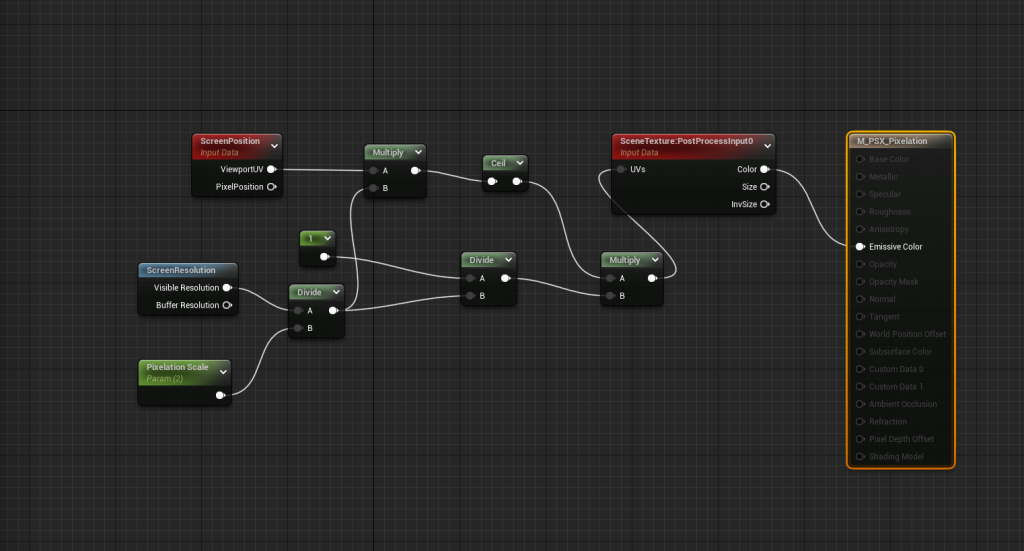
Then I need to divide them and multiply these nodes a couple of times and a ceil which will round up whatever is plugged into it to the next integer. Lastly, I need to add a scene texture node, and then I will click on it and change the scene texture id to the post-process input 0, which is the post-process volume currently in my scene, then plug it all in the emissive colour section of the material.

Now I need to do is put this material onto my post-process volume, and it will apply the pixelation effect to it; however, before I do that, I will create an instance of my material instead, as this will allow me to change the level of pixelation without changing the original material and to create a material instance all you have to do is by right-clicking on the material in the content browser. It will give you the option to create a material instance.

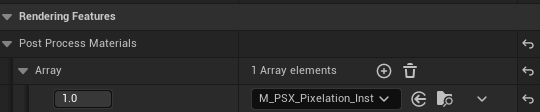
To put material in a post-process volume, you must click on the post-process volume in your scene. On the right side of the UI, there will be a window with all of the settings relating to the post-process volume scroll down until you find the material option and apply your material to it.