Making Cookie Clicker
Link to My Cookie Clicker Game
https://walkerscrisps.itch.io/cookie-clicker
What is an Idle Clicker Game?
The first prototype that I created was an idle clicker game. The most famous example of this type of game is Cookie Clicker and in these types of games, the player will be performing simple actions by clicking or tapping on the screen if they are playing it on a mobile phone. These games have a form of in-game currency that the player has to work for, known as grinding. By spending a lot of time playing the game they can earn in-game currency which allows the player to purchase upgrades like for example in a game like a cookie clicker you could have an upgrade where it could auto-generate cookies every second and this would make the game easier and the make the game a lot faster.
The Process of Making an Idle Clicker Game in Unity
Now I will go through the process of how I created an idle clicker game in Unity, the first thing that I did when setting up my project was change the resolution of the game so it could match the platform that I was going to design the game for. The platform that I chose was mobile phones.
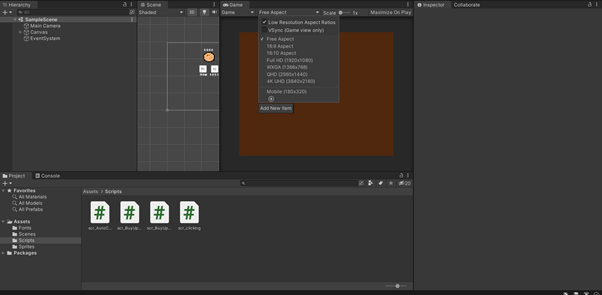
Since there is a wide variety of mobile phones out there, I decided to choose a common resolution that all of these phones would support so I wouldn’t have to worry about it not displaying correctly on a different phone. I changed the resolution in Unity by going to the game window and clicking on the option that will be free aspect by default and this is the part that I wanted to change. I clicked on the plus icon to add the resolution that I wanted, and I set the resolution to 180 by 320 since this resolution would display on any mobile phone without any issues and you can see what these options look like in the image below.
Setting up UI Elements
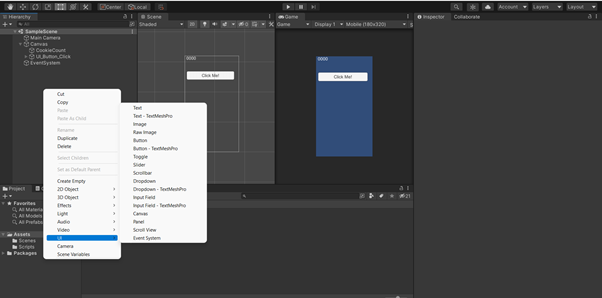
After I finished setting the resolution for the game, I needed to add some elements to the game because now it is just a blank screen and I needed elements mainly buttons which the player would interact with when they played the game, and I did this by right-clicking on the hierarchy view and selecting UI and then clicking on the button option to add a button onto the scene. In Unity, all UI elements such as buttons, text etc will be put onto the canvas which will appear as a white box in the scene view and this is how Unity will deal with all UI elements that you want to add when creating a game using the engine.
Next, I need to move the button so the player would be able to see it when they play the game and this is simply done by moving the button by dragging it in scene view also the button has a text object attached to it and because of this I will be able to change the text of the button and for now, I will just put some text that says “click me”.
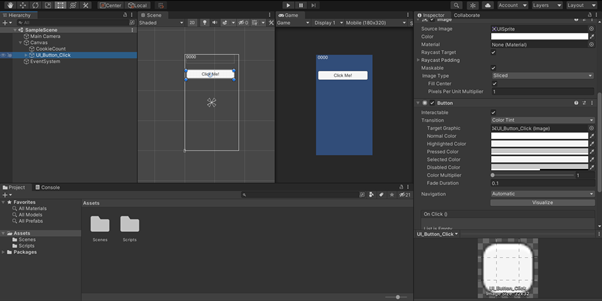
Later on, I will change this button to an image of a cookie to fit the theme of the game better but first I need to make sure everything works correctly before adding finishing touches to the game and changing the image that is on the button is very simple you can do it by clicking on the button in the hierarchy view than looking at the image tab in the Inspector view, you click on the source image option and then you will be able to select any images that you have in your Unity project. You can see what these options look like in the image below.
Next, I needed to add one more UI element to the game, and this would be some text that would display a counter for how many cookies the player had made when they clicked on the button, and this was done by right-clicking on the hierarchy and then going to the UI option when selecting the text option also I changed the colour of the text to white so it would be easier to read.
Making Scripts
Now that I have all the basic UI elements that I need, for now, I can start making scripts to make the elements in the game do something and I did this by right-clicking in the assets window and selecting create option, then clicking on the C# Script option to create the script, and I will call this script scr_clicking because this script will contain all elements relating to UI elements that will change when the player clicks on the button that I created.
Writing the scr_Clicking Script
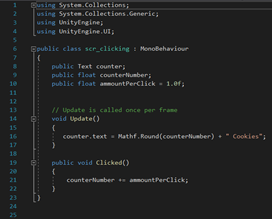
Now that I have created the script that I needed now I need to type the code to tell it what to do since this code will be using the UI elements that I made earlier, I need to tell Unity that I want to access them and the way to do that is under the “using UnityEngine” line I added a new line of code saying to allow access to the UI elements of the engine and the code that I wrote is “using UnityEngine.UI” and this will allow me to enter code relating to the UI functions of the engine if I didn’t’ write this line of code it wouldn’t be able to understand anything that was related to the UI because I didn’t tell it that I wanted to use it.
Since I have told Unity to allow me to access the UI elements of the engine, I am now going to add variables that will relate to it and the variables that I added were for the text and two float variables, and firstly the text variable that I created will be called counter since this variable will contain the text element that we created earlier, and it will display the current number of cookies the player has.
The first float variable that I created is called the counter number, and what this float variable will do is contain the value/number of the current amount of cookies the player has and the last variable that I will create in this script is for the value of how many cookies I will add to the counter depending how many times the player clicks onto the button that we created earlier and I will set the default value to add one per click and I called this variable amount per click.
Also, I made all of the variables public and I did this because this will allow me to access them in the unity editor like for example, if I wanted to change the value of how many cookies would be added to the counter when the player clicked the button I wouldn’t have to go into the code I would be able the change the value without having to open this script.
By default, every script in Unity will have a start function, but we won’t be needing that for this script, so I removed it, and the reason I did this is that we don’t want anything to happen when the player starts the game like for example, we wouldn’t want the counter to go up when the player just started the game because that would defeat the purpose of making the player click on the button to make it go up they could just watch it go up and at that point, there would be no gameplay, so we want to avoid that so I removed it from this script.
So instead, I added the code to the void update function, and what this part of the code does is that it will update something every frame in the game since we want the number on the counter to increase and we would want it to happen every frame in the game, so I will write this section of the code in the update function, and the line of the code that I wrote in this section is “Mathf.Round(counternumber) + “Cookies”; and this line of the code will make the counter update every frame so for example if the value of the cookies the player had 10 it would display 10 cookies on the screen.
Also, I have used a Mathf function, this function is a basic math function so anything that you want to do related to math in code, you would use this function, and in this case, I would round the numbers, so I put .round after the mathf function and this will round the numbers up as if we didn’t do this it would display the value of the cookies the player has and will have a decimal after it like for example, it would display as 10.5, and that isn’t the information that the player would need so I just rounded it to the nearest whole number instead.
The last thing I need to add to this script is our own function and what this function will do is add the value of the amount of the cookies the player has gone by clicking so we will add the “amountPerClick” to the “counterNumber” variable and this will update the text element that I created earlier to show the correct amount cookies the player has and to do this I wrote this line of code “CounterNumber += amountPerClick” and in code when adding something together, you will write the plus and the equals sign next to each other because it will add the value that I want in this case from the counter number variable and adds onto the amount per click value to it as well and that will be the value will equal to the combined value of the both of them, and that will be displayed on the screen.
Attaching the Script to the button
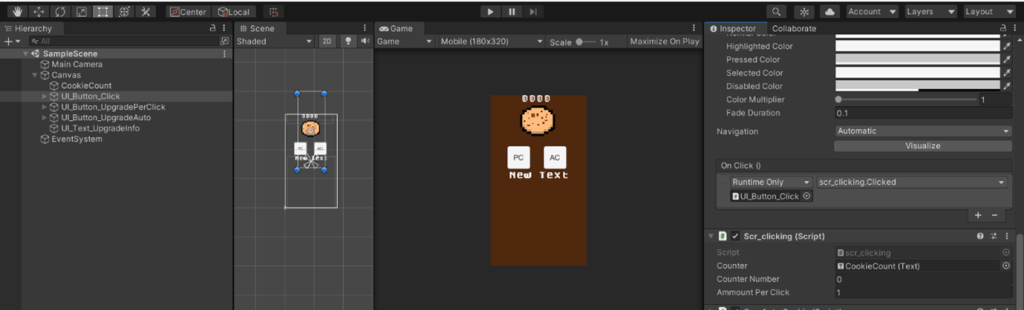
Now that I have finished all of the code for that script, I need to attach the script to the button that I created otherwise, if I don’t, the button won’t do anything since there will be no script attached to it, so it wouldn’t know that I have told it to do something and you can attach any script In Unity to any object that you made by selecting the script that you made in assets view and dragging onto the object that you want that script to work with and in this case, it will be the button that I created.
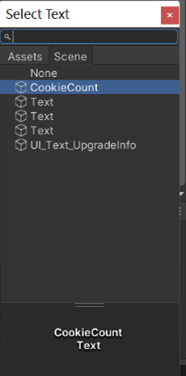
In the inspector window, there will be a new window with the name of the script that I created earlier, and it will show all of the variables that I made public as if they were private variables, they wouldn’t show up in the Unity editor also I needed to add the text element that I want to use as by default it will be empty, and this can be done by on the small circle icon next to the section that says counter and when you click on there, it will give you options for all the text elements that you created in your Unity project and in this case I want the text for the counter that I made earlier.
Adding an On Click Event to the Button
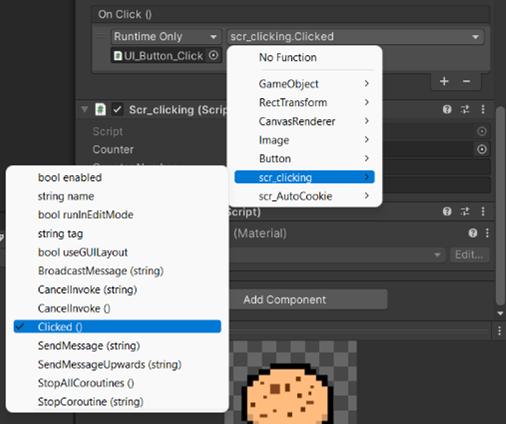
However, at the moment when the player goes to click onto the button, it won’t do anything and the reason for this is because I haven’t added an on click event to the button and what this event will do is when the player clicks on the button it will make the number of cookies increase as I set up it to do in the script and because I haven’t attached the clicked event that I made earlier in the script to an on-click event it won’t be able to do anything since that function hasn’t been attached to this event.
To add an on click event to any object in Unity you will look at the inspector view of the object that I want to add an on click event to and in this case is the button and you will see that the on click event is empty so we click on the plus icon and when you do this it will add a new box inside this window but at the moment it won’t have any objects attached to the event so you need to tell Unity which objects you want to attach to this event and this object also has to have a script attached to it because if it didn’t I wouldn’t be able to pick the function that I want to it do since it would be an object without any scripts attached to it.
In this case, I want to add the button object itself because that has the script that will make the counter increase and to add it all you need to do is click on the small circle icon in the objects section of the on click event and from here you will be able to add any objects to the on click event that is in your unity project and this is where I will pick the button. Now that I told Unity to use the button that I created in the on click event now I will be able to select the functions that I want to happen when the player clicks on the button, and I want to select the Clicked event that I made earlier in my script so now when the player clicks on the button the number of cookies will increase.
Adding More UI Elements and making the scr_BuyUpgrade_PerClick Script
I am going to add more UI elements as I need them now and the ones I am going to add are another button that will be used for one of the upgrades the player will be able to buy and underneath this button, I will be adding text as well which will tell the player what that upgrade does and I will set it up to only display this text when the player hovers over the button so it won’t display on the screen all of the time and lastly I am going to make another script for this upgrade and I am going to call it “scr_BuyUpgrade_PerClick”.
I am going to reference the UI elements of the engine again so I am going to need to write “using UnityEngine.UI” again and I am going to create some new variables the first one I am going to add is going to reference the script that I created previously as this will allow me to make changes to the values that I set in that script in the scr_BuyUpgrade_PerClick script that I created and I did this by typing “public scr_Clicking click”.
The other variables that I am going to add are variables for the text, three float variables and a string so firstly, I will be using the text variable for being to display the information about the upgrade that we are going to create later on in this script and the string that I created will be for the name of the upgrade and lastly, the three float variables that I made will be for the current price of the upgrade, the second float variable will be for to increase the value of the current price of the upgrade after each time the player purchased this upgrade, and the last float variable will be used for how much more cookies I want to add per click after the player purchased this upgrade.
I won’t need the start or update functions for this script as I will be creating my own functions for this script so I deleted these two functions from the script and added an new function called “void PurchasedUpgrade()” and this function will handle everything relating to when the player tries to purchase the upgrade.
In this function, I made a conditional if statement and what this means is that if the condition that I have set is met, it will execute the code that I have told it to do and in this case, I have told it to check if the current price of the upgrade is equal to the number of cookies that the player has or the player has more than the price of the upgrade and I did this because I wouldn’t want the player to be able to purchase upgrades without having any of the in game currency.
I did this by that in the if statement I typed “(if click.counterNumber >= currentprice”) and basically what this will do is reference the previous script that I made to check the number of cookies the player has and if it’s the same the current price and the reason that this will be able to reference the previous script that I made because I made a variable called click that will reference that script and will be able to access all of the functions that script has.
So if the if statements comes back as being true it will subtract the value of the current price of the upgrade that I have set it to from the number of cookies the player has so by doing this the player will lose the in-game currency they have when they purchase an upgrade and if I didn’t do this they would be able to keep on purchasing upgrades without losing any in-game currency. Also in this script, I will add the value of the clickPower variable that I created onto the amountPerClick variable from the other script that I made and by doing this it when the player goes to click onto the button again it will add one extra cookie to the counter so it will increase by one each time when this upgrade is purchased.
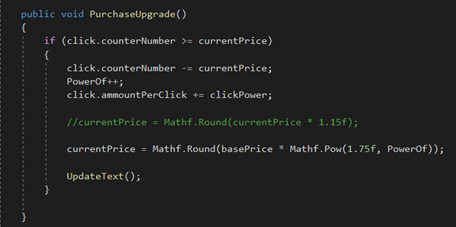
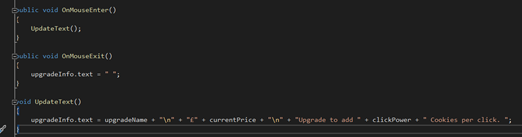
Now I am going to set up the text for the upgrade info so when the player hovers over that upgrade, it will display information about that upgrade and to do this, I had to create three new functions and what these functions will do are that OnMouseEnter will only trigger when the player hovers over the upgrade button with their mouse. The second function that I created OnMouseExit will only trigger when the player stops hovering over the upgrade button with the mouse and when the player stops hovering over the button, I made the text empty so it wouldn’t display any text when the player isn’t hovering over the button.
Lastly, the Upgrade text function will update the text when it needs to like for example, I want the text to update when the player hovers over the button to show the upgrade info so I will make it do that by using this function. Also, I attached this script to the button that I made for the upgrade and attached the text element and the previous script to this one by adding them in the Unity editor.
Adding Event Triggers
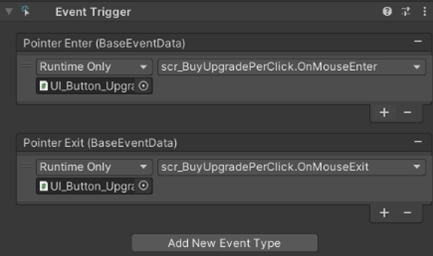
However, when attaching this script to the button object, the OnMouseEnter and OnMouseExit functions that I made won’t work by default, and to get them to work, I need to use an event trigger and basically what an event trigger does is that it will allow me to call a specific function that I want to use, so with the event trigger, I will be able to call the OnMouseEnter and OnMouseExit functions that I created earlier.
To add an event trigger to any object in Unity, I will select add component onto the object that I want to add it to, and in case it will be the upgrade button, and then you just search for event trigger and then just the press enter key on your keyboard, and it is added to the button, and by default, the event trigger will be blank because I need to tell it what functions I would want it to use and the ones I am going to use are pointer enter and pointer exit now I am going to link the upgrade script to event trigger and tell it to use the OnMouseEnter and exit functions now that I set up all of that when the player goes to over the button it will display the text for that upgrade, and it will disappear when they aren’t hovering over the button anymore.
Making the Auto Cookie Script
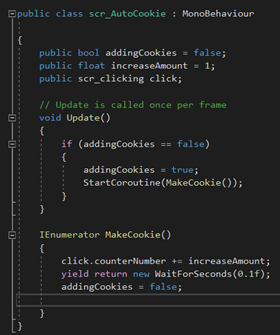
Now, I am going to create another upgrade for the game, and this upgrade will automatically add cookies to the counter when this upgrade is purchased by the player, and this upgrade will be using a different button, so I created one for this upgrade. So in this script I added 3 three variables, and the first variable would check if it is going to add cookies to the counter or not and I called this variable addingCookies and I used a Boolean, and this type of variable will come back to the answer of true or false and by default I set the variable to be set to false as we only want it to be true when the player purchased this upgrade.
The second variable that I added will check how many cookies it is going to add per second, and I set the default of this to one, so it adds one cookie to the counter every second and the last variable is a reference to the clicking script that I made, so I will be able to use any functions that I created in that script in this one.
For this script I won’t need the start function, so I removed it, and I added an IEnumerator function and what this function will do is gradually increase the number of cookies added to the counter over a period of time, so in this case, I have set it to wait 1 second before executing the code and lastly in this function I have set adding cookies to false because it will know to set it to false by default as I don’t want to add cookies to the counter by default because I only want it to be true when the player has this upgrade.
Now in the update function of this script, I am going to tell it to start a coroutine and what this means is that when I call the function that I want to use it will finish executing that function before doing that function again so it will perform this function every frame and in this case I want to keep on adding cookies to the counter when the player has this upgrade so it will keep on adding to the counter every second so I set the adding cookies variable to be true then it will start the coroutine so it will keep on repeating the same instructions over and over again.
Now I am going to add this script to the button that I made for the clicking script and I am going to add the reference to the clicking script inside this script in the editor and I will set it to increase the number of cookies to 0 by default as I don’t want it to automatically increase when the player hasn’t purchased this upgrade.
Making The BuyUpgrade_Auto Script
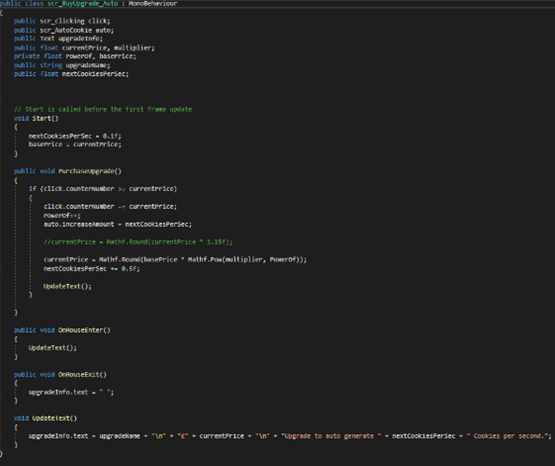
Now I am going to make the last script for the cookie clicker game, and in this script, it will allow the player to purchase the upgrade that I just created, and this script will be attached to the button that I made earlier but haven’t used yet. Firstly, I am going to add some variables, for the most part, it will have the same variables of the upgrade per click script that I created earlier but with some changes to them like I added a variable that will be for the how many cookies will be added to the counter per second instead of click power since this upgrade won’t involve how many are added when the player clicks instead it will automatically add them to the counter, and I will add a reference to the auto cookie script so I can use all of the functions from that script inside this one.
In the start function, I have set how many cookies will be added to the counter to be set to 1 second, so when this upgrade is purchased by the player, it will add to the counter every 1 second. Also, in the start function, I set the base price to the current price of the upgrade, so whatever I set the current price to that will be the base price that the player has to pay to get the upgrade.
The function for purchasing the upgrade will be almost the same as the one I made in the per click upgrade script as it will check if the player can afford the upgrade and if the player can afford it will remove the amount the money that the upgrade costs from the player’s cookie counter and then it will increase the price of the upgrade so it will cost more the next time the player tries to purchase it.
Also, I need the upgrade text function from the per click upgrade script because when the player hovers over the button for this upgrade, I want to tell them information about this upgrade like I did with the previous one and to do this, I copied and pasted all of the code relating to the upgrade text variable from the per click script into this script and I then just changed what the text will say, so it tells the player about what this upgrade does.
Now I will add this script to the button for this upgrade now that I have added this button, I need the references to the clicking and the auto script in the editor so Unity knows which scripts that I want to use to call the functions from both of those scripts and I need to add the text object that I made earlier as well so it can display the info about this upgrade.
Also, I need to set some of the values for the variables that I made in the editor so I am going to set the current price that the upgrade will cost to 20, and the multiplier to 1.75. The last thing that I need to do to get all of this to work is the setup event triggers for this button since I am using the OnMouseEnter and OnMouseExit functions again, and it will be the same way to set up it as I did previously with the other upgrade.
Exporting/Building the Game
Since I have finished everything I wanted to do with this project now all I need to do is build the game and the target platform that I will be building for WebGL because I will be uploading this project to a website so it can be playable in any web browser and to do this I will go to the build settings of my project and set it to WebGL as by default in Unity it will be set to PC, Mac and Linux Standalone.
However, when I finished building my project and uploaded it to the website, whenever the game would load, it would get stuck loading right at the end, and this happened because there was an issue with the build settings that I used in my project, and to fix it I had to change one option in my project, and the one I changed was to disable compression when it would build my project so by disabling compression and rebuilding the game now when I uploaded it to the website it would finish loading and now anybody would be able to play the game.