Exprimenting With AR With Unity & Zapworks (Week 3 Lab)
What Zapworks/Unity AR Could be Used For?
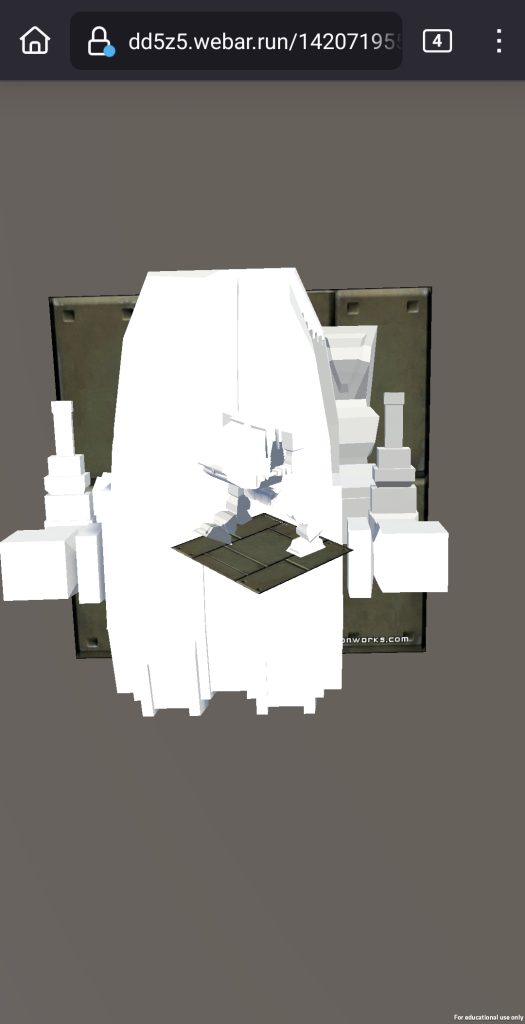
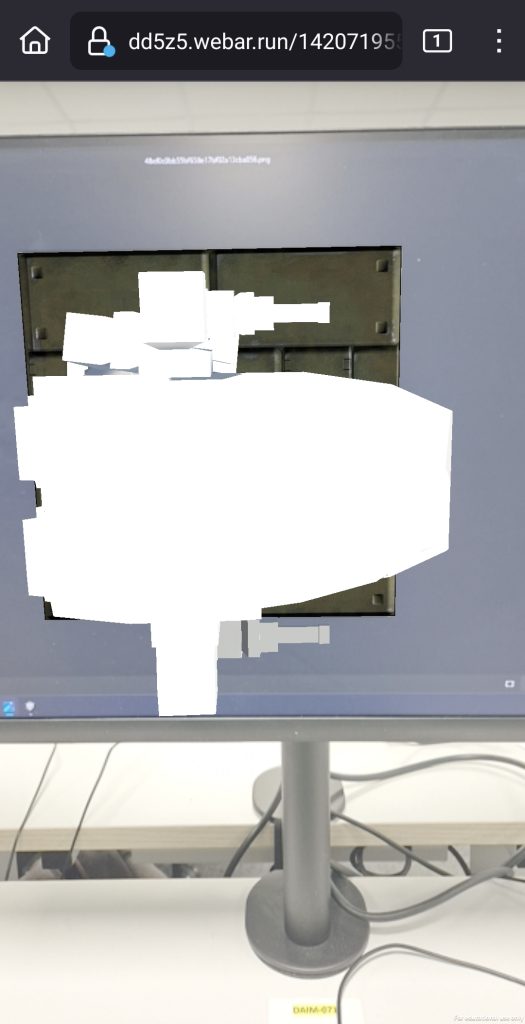
You could use Zapworks for showing off various 3d models you have created to someone else or if you wanted to show off a small animation you have created for your model such as walking animation etc this would be useful if you are working in a team since all they have to do is scan qr code on their phone and you don’t have to send the file to view the model.
For this week I was tasked with getting with a pre-made 3d model into unity where a image will act as a trigger for that model so when you put the image onto a screen and point your phone camera at it that a 3D model will appear on your phone.
Also I was tasked with doing this pre-made animated model aswell and taking what I learned from this to apply it to my own creation.
Setting Up the Zappar Camera & Trigger Image
Firstly, I need to setup the camera which can be done by going to the Zappar tab in Unity and selecting the camera button and in this case I will be using the rear facing camera now a camera will appear in my unity scene.
Now, going back to the Zappar tab I will instead click on the image tracking target button and this will add this to my scene aswell now I need to tell that camera to use the image tracking target otherwise when we add the trigger image it won’t work.
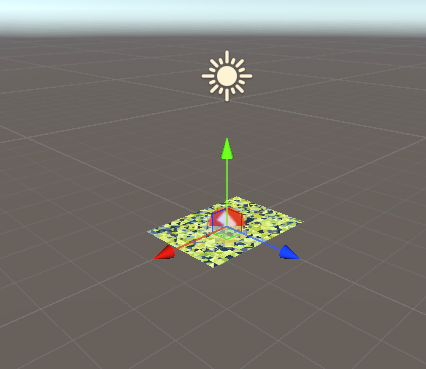
To do this I click on the Zappar camera in the Unity hierarchy and from there in the inspector I go down to the bottom and just drag the Image tracking target into anchor origin on my camera.
Adding Target Image & Importing 3D Model
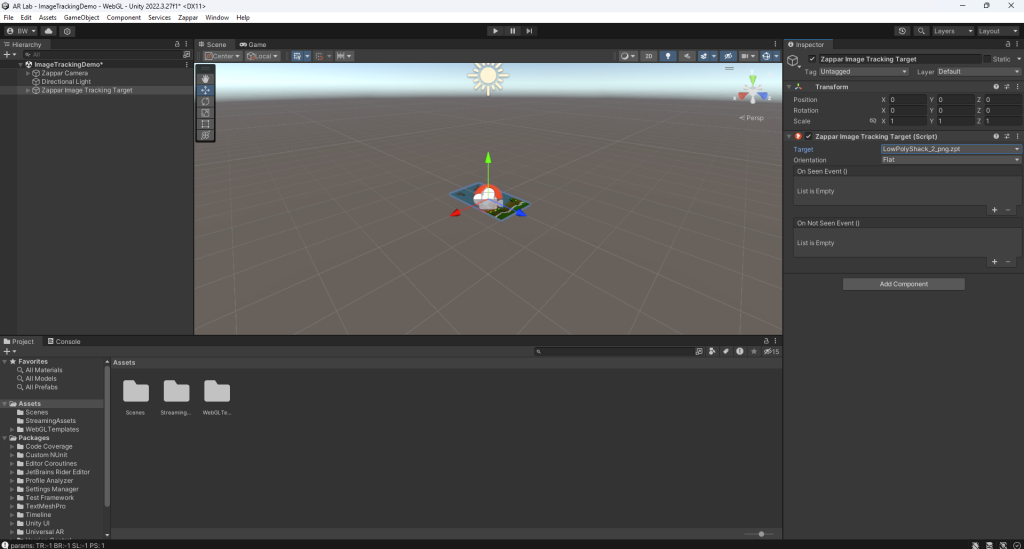
To add the target image go back to the Zappar tab and click on the editor button and this will open a pop out window with a couple of options but I will be selecting the open image trainer and from there this will open another window and from here I can browse for my trigger image.
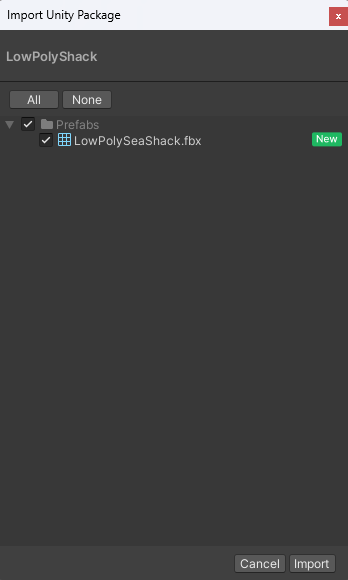
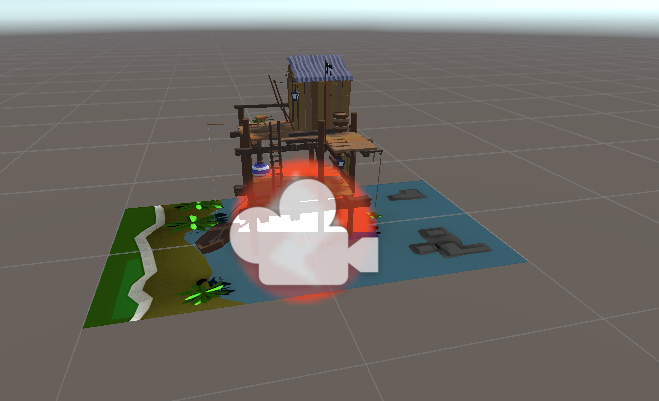
Now, I need to go back to the zappar image tracking target in the hierarchy and in the inspector window and in the target box and now just select the the image from there and to import the pre-made 3d model I have to go the assets tab and click on the custom package option and then just browse for the 3d model and now the 3d model will be in my unity project.
Final Touches In Unity
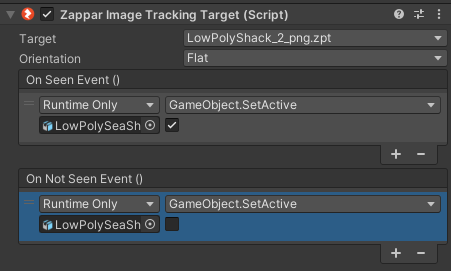
Now, I need to make the 3D Model a child object of the tracking target and this can be done by just dragging it onto to it in the hierarchy and now I will select the image tracking target and I will go on the on seen event and use the set game object active and as the game suggests this determines if the 3D model will be appear or not and since this is a on seen event I want to be seen so tick the box so it’s set to true and for the on not seen event I will do the oppsite.
Uploading to Zapworks
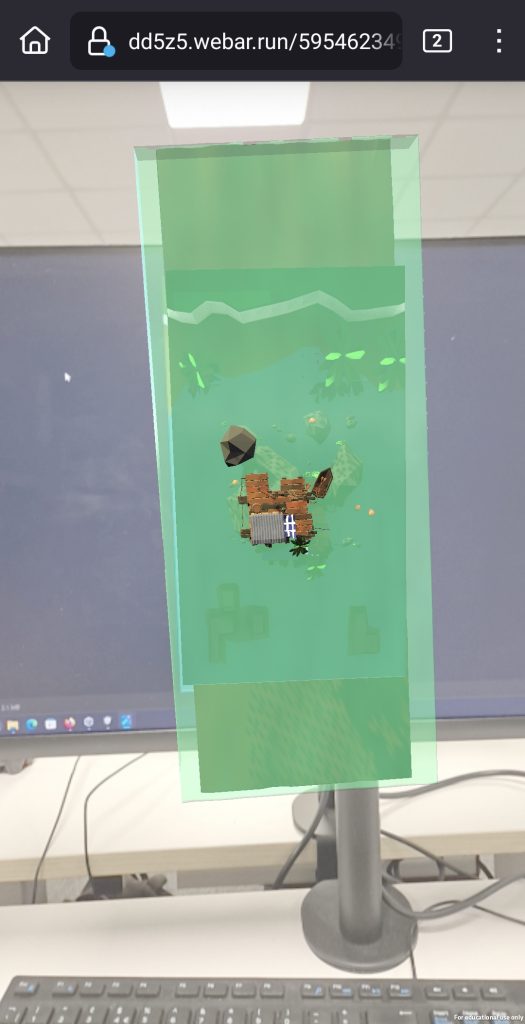
Uploading to Zapworks is easy to do is you build your project in Unity then find the where it is located on your pc and make it a zip file and then go to your projects page and click on the upload and publish button and now your content will be uploaded also your trigger has to have the same as your project title on Zapworks or it won’t work. Now just scan the qr code with your phone and it will work.
Animated Model
The process was the same instead of putting of the non-animated version I just imported the animated one instead and uploaded it to Zapworks.
My Own AR Model
The process of creating it was the same however there were some differences such as using a different trigger image and how I added the model was different and the reason was I was using fbx file so to import into unity I clicked on the import new asset button instead.
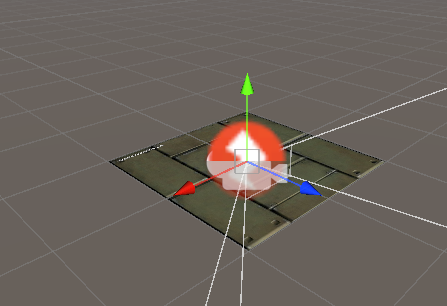
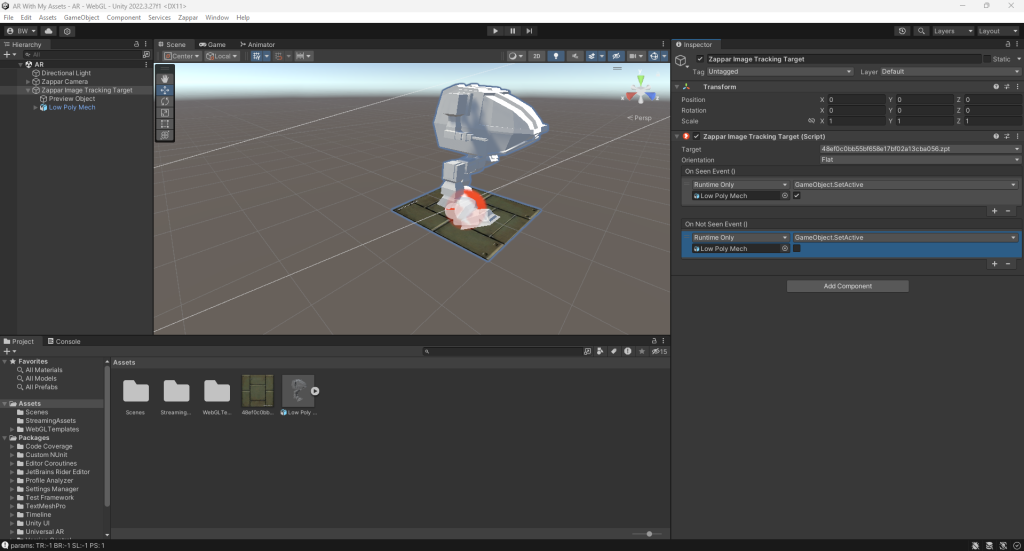
However, when I uploaded it to Zapworks and tested the AR another small model version of my model this was because when importing the model it included another camera from when I created the model in Blender so just deleting it and reuploading to Zapworks fixed this issue.