Introduction to Blueprints (Week 3)
Setting Up a Blueprint in your Level
To set up a blueprint that you want to use in your level, on the top of the UI, there is an icon for blueprints, and when you click on that, it will open a new window which allows you to create blueprints.

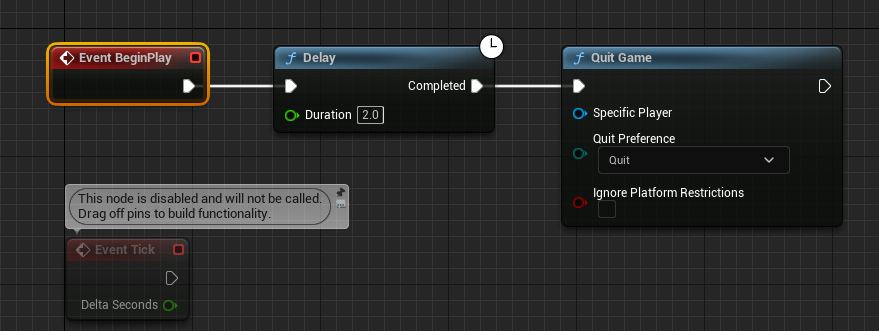
The first blueprint that I created does is that after two seconds, the game will quit and to do this, I have to add a begin play event to add anything to your blueprint, you can right-click anyway in the window, and a search box will appear. You find anything that you want to use, and in this case, I searched for begin play event.
Then after that, I added a delay event as this will act as the timer, so after the 2 seconds, the game will close itself, and I plug the begin play event into the delay function. The last thing I need to add for this work is the quit game function which will just quit the game.
2nd Blueprint
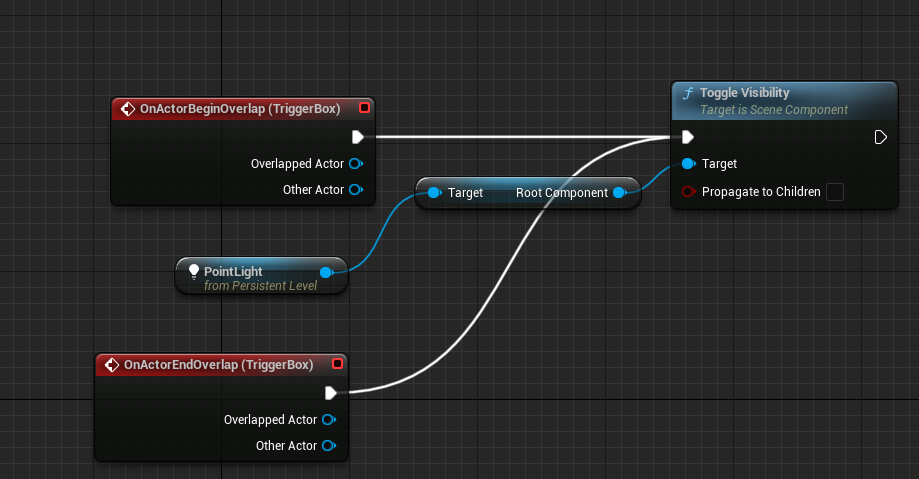
I was also tasked to make another blueprint that when the player comes into contact with something, it will turn a light on and off so to do that, I have to add a box trigger to my scene, which is an object when the player walks into to you can make something happen, and I will add a point light to my scene as well as I want to a light turn on and off.
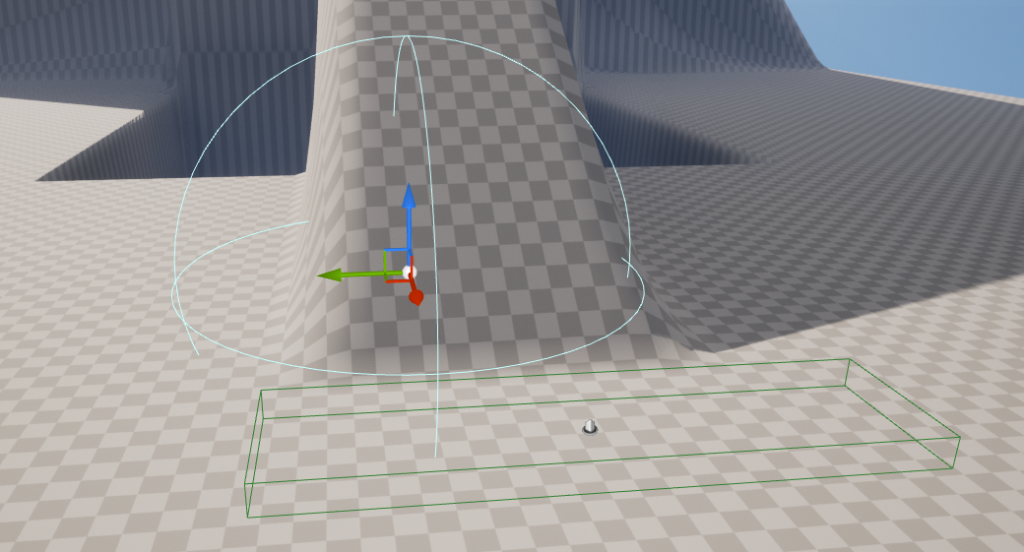
Now I need to add an event, so I can make the box trigger do something in the blueprint and do this in the scene by clicking on the box trigger itself then opening the blueprint window by clicking anywhere in the window and where the search box usually appears a new section which allows you to add events relating to the object you have selected and in this case I am going to use the begin overlap event and what this event does is when the player object overlaps with the box trigger something will happen.

Then I need to add a toggle visibility function which I can plug into the begin overlay event. What this function does, as the name suggests, toggles the visibility of an object, and in this case, this will be the light that I will be turning on and off. Now that I have added the toggle visibility function, I need to reference to the light that I have added in my scene so it knows which object to toggle the visibility of.
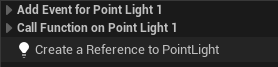
So, to add a reference of an object to a blueprint, you have to click on the object you want to in the scene, then head back into the blueprint and right-click anyway, and there will be an option to add a reference to that object then all I have to do is plug it into the toggle visibility function which will have a target option on it, and this is where I will plug it into.
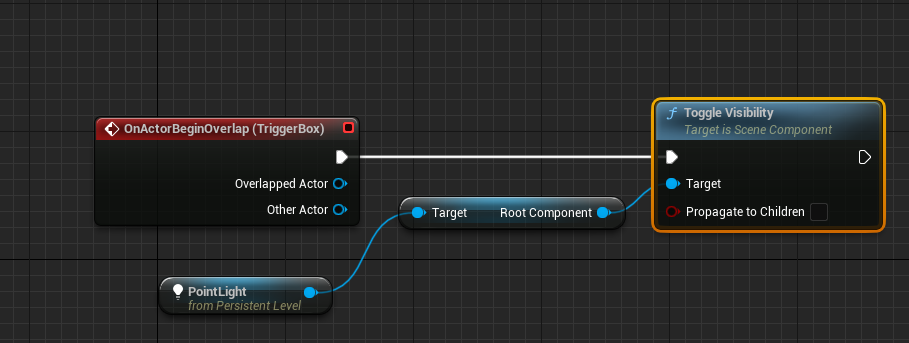
However, now the event will work and trigger the light to turn on when you walk away from it will stay on, but this is an easy fix I just must add an end overlap event which will do the opposite as the begin overlap event so when the event ends something will happen, and I have plugged this in the toggle visibility event, so when the player moves away from the light it will turn off.