Making a Low Poly Model of My Shuriken
Before I show you the process of how I created a low poly version of my Shuriken, I will look at what a low poly is and the differences between a high and low poly model and where you could use a low and high poly model. Firstly, a low poly model is a type of model that has a small poly count and is typically used to save on resources as a high poly model has a high poly count and by lowering the poly count of a model it will be less intensive on the hardware it is running on.
Also, in games for some objects, the developers will use a low and high poly version of the same object and the reason for this is that depending on large the game is common technique developers use is depending on how far the object is away from the player they will use a low poly model if the object is far away and as the player gets closer to the object they will use the high poly version of the object.
The Process of Making a Low Poly Model
Now, with all of that out of the way, I will show the process of how I took my high poly version of my Shuriken to make a version with a lower polycount, so firstly I duplicated the high poly model so if make any changes it wouldn’t affect the original version of the model and to duplicate objects select the object you want to duplicate in the outliner and then press control and the d key on my keyboard and now there will be another version of your object and then I hid the original version of my object so it wouldn’t get in the way of editing the copy I just made and to do this I selected the original and pressed control and h on my keyboard to hide it.

Next, to decrease the poly count of the current model I will use a tool called the reduce tool what this tool does is that it allows you to reduce the number of polygons on the mesh and this is exactly what I want because it will allow me to create a lower poly model and to use this tool you go to the top of the UI until you find the mesh tab and scroll down until you find the reduce option.
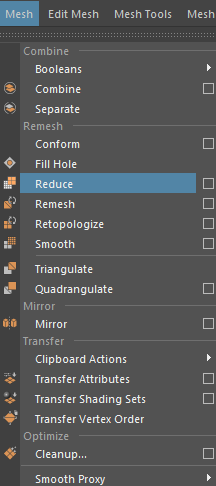
Next to the reduce option you will notice the empty square if you click on this it will open a new window which will allow you to change settings relating to the reduce tool such as it allows you to change the method of how the poly count will be decreased on the mesh which is the number of vertices that can be on the mesh, the number of triangles that can be on the mesh and lastly it can be done by overall percentage and you can edit many more options in this window.
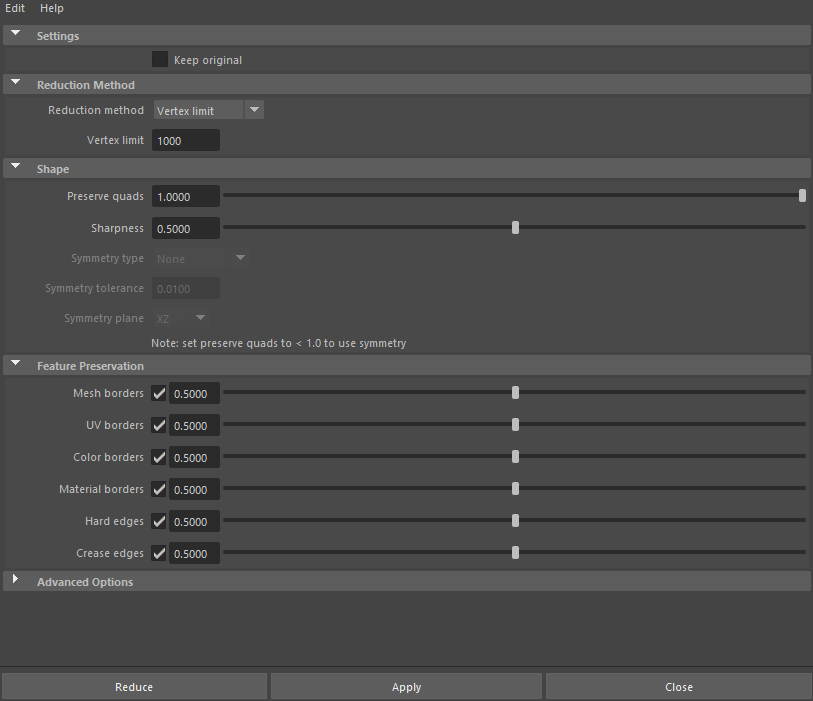
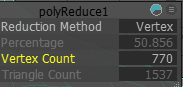
Next, I will click on the reduce button which will apply the settings that I have chosen the settings that I chose were to decrease the vertices to 770 and the amount of the triangles to 1,537 and by doing this I decreased the amount of my shuriken by a lot and in the images below you can see the difference between the high and low poly models of my shuriken.