Making An Top-Down Shooter
Here is a Link to the Top-Down Shooter that I created
https://walkerscrisps.itch.io/top-down-shooter-prototype
What is a Top-Down Shooter?
A Top-down shooter is a shooter that has a top-down perspective which means that the player will be able to see things from the above and the goal in these types of games is to defeat all the enemies that appear on the screen by using your weapons and it is usually a gun as your main weapon in these types of games.
The Process of Making a Top-Down Shooter in Unity
For this project, I will be using an asset pack that will contain all the assets such sprites for the player, enemies etc that I can use for testing when making this prototype and I used a top-down shooter asset pack from Kenney.nl and this site has a lot of free asset packs for 2d and 3d games. Next, I will import these assets into Unity and put the assets that want to use onto the scene view.
Setting up the Player Object
The first thing I need to do with the player object is to add a Rigibody2D component to it so it can react to gravity and there is one thing I need to change on this and that is to set the gravity scale to zero and the reason I am doing this is that if I didn’t the player would be able to fall downwards and since this game will be from a top-down perspective I don’t want that to happen.
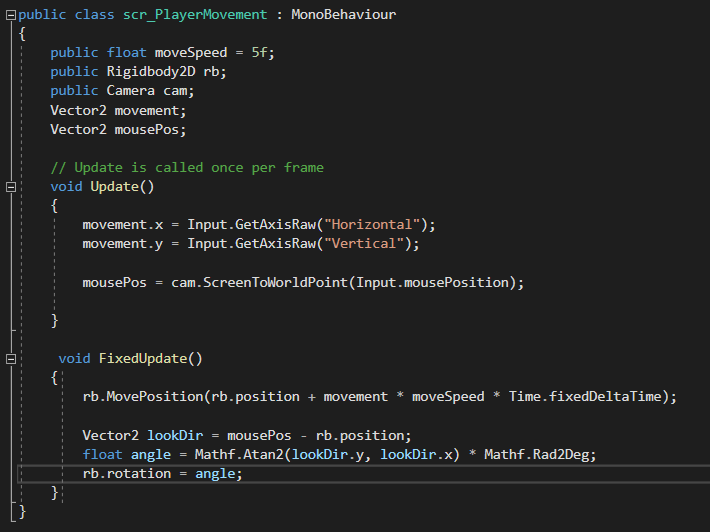
Now I am going to make a script for the movement of the player object and in this script, I am going to add new variables one for the player’s speed and one for the player’s rigid body component and the reason I want to be able to access the player’s rigid body is due to that with this I will be able to manipulate/control the movement of the player object.
Also, to manipulate the position of any object in unity you will need to use a vector so I am going to add a vector variable to this script so in the update function of this script I will get the player’s horizontal and vertical movement by getting the player’s input so depending on which key they press they will either move vertically or horizontally.
And in the fixed update function of this script, I will be using the rb.moveposition and what this will do it allow the rigid body component of the player object to move to a particular location and the location I am going to set it to is the player’s current position and adding on the value that is in the movement vector that I created earlier and lastly the speed of the player object.
Now the player object will be able to move however I want the player to be able to aim with the mouse so when I add shooting the game they will be able to aim with the mouse and move the player object by pressing keys on the keyboard and to do this I need to get the position of where the player’s mouse will be and get the player object to be able to aim it.
So, the first thing I need to do is add a reference to the game’s camera to the player movement script and this will allow me to get the position of where’s the player mouse is also I am going make another vector that will store the mouse position of the player.
I will go back to the update function of this and take the vector variable that I created to store the mouse position of the player and convert it to an x and y coordinate so it will be able to use in the game and this can be done by using ScreentoWordPoint function and to get the mouse position all you need to write is Input.MousePostion so now that the game will know where the mouse position all I need to do now is to allow the player to be able to rotate in the direction that the mouse moves.
So in the Fixed Update function of this script I will tell it to make a new vector that will be equal to the current mouse position of the player then it will subtract it by the position of the player object however unity will need to know where I want to point the player object and to do this it will need to know the angle for the Z rotation of the player object and to do this I make a float for the angle and all I did in this float is to tell it to convert the value from radians to degrees and to do this all you need to is multiple the value we have by MathF.Rad2Deg and the values that this will be multiplied by are the directions of the x and y coordinates of the lookDir variable that I created earlier and the last thing I will do in this script is set the position of the player object to the new angle that we just created.
Setting up Shooting in the game
The way that I will be setting up shooting in this game is somewhat similar to the way that I did it for my space invaders clone as I will need to set the spawn location of where the bullet will be, and I did this by creating an empty object in the editor and putting it in the position at the end of the character’s gun and then I will import a sprite for the bullet and set up the colliders on the bullet object.
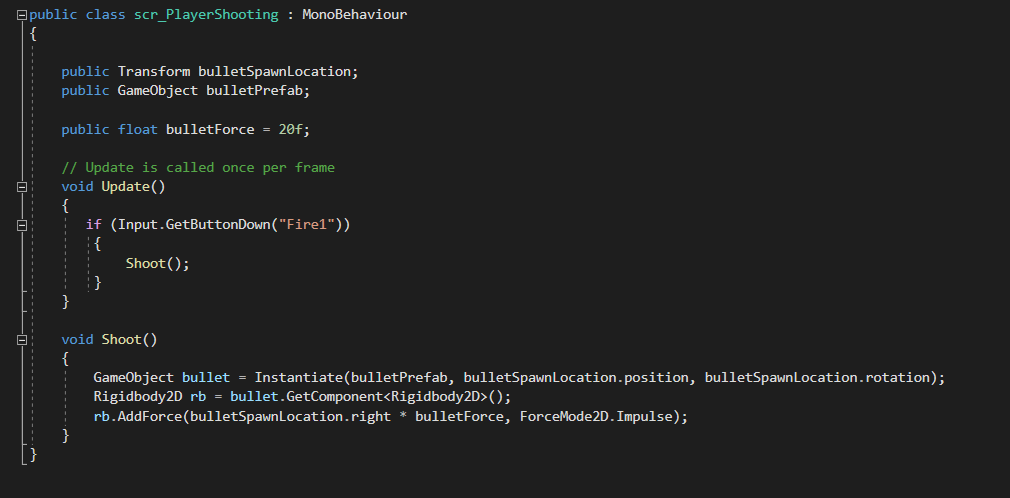
Now I am going to create a script that will allow the player to be able to shoot so the first things that I need to add to this script is a variable for the transform component for the bullet spawn location and this will allow me to get the position of the empty object that I created earlier and it will make the bullet spawn in that location when I set it up.
Also, I will make a new function which will be called shoot and in this function, it will handle everything to do with the player being able to shoot such as it will use the bullet prefab that I made earlier and will use the bullet spawn location transform component that I also made earlier to know the position of where the bullet will spawn and for the rotation of the bullets as well because it will move where ever the player is facing. The last thing I need to do in the script is to go into the update function and make an if statement that will tell it if the left mouse button is pressed it will use the shoot function that I just made and with this whenever the player presses the left mouse button, they will be able to shoot.
Now I will attach this script to the player object and the empty object for the spawn location of the bullet into the transform reference of this object that I made in the script in the unity editor and drag the bullet prefab into the box that I also made for it in this script and now the player will be able to shoot.
Setting Up Enemies/ Being Able to defeat the enemies
The setup for the enemy object is the exact same process as I did with the player object and now I am going to create a script for the enemy movement this script will be somewhat similar to the player movement, so the differences between them instead of following the position of where the mouse is moving, the enemy object will instead follow the player object around the level also I need to make a variable for the object and the rigid body component of the player and I will need to drag this two components onto this script when I add it to the enemy object in the unity editor.
Now that I have finished setting up the enemy object, I need the player to be able to defeat them and to do this I will add a tag to the enemy object and this is the same way I handle it when making my space invaders clone so now that I made a tag for the enemy object and I am going to make a new script for the bullet and in this script, I have made an if statement telling it if it collides with any object with the enemy tag it will destroy that object in the game so when the bullet hits an enemy it will destroy the enemy object.